PDF-Converter 3.1
Local Windows tool that converts over 115 file formats losslessly into PDF documents – either by drag & drop or fully automatically via the command line.
Download now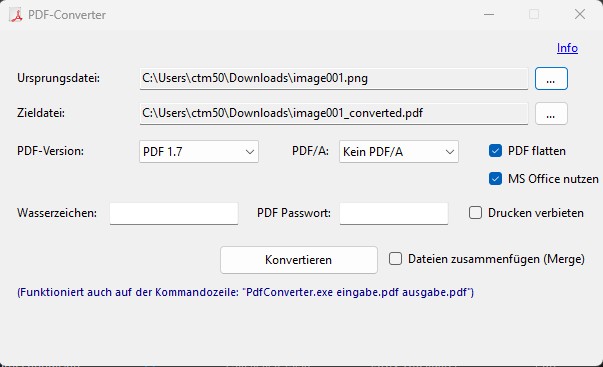
Description & documentation
The PDF-Converter is a local Windows tool that can convert over 115 different file formats losslessly into PDF documents. It uses a combination of proven, licence-free open-source components and integrated engines, and works either through a graphical interface with drag and drop or fully automated via the command line.
How it works
Depending on the file format, the program automatically chooses the best possible engine:
| Engine | Task |
|---|---|
| PdfSharp + Ghostscript | Native PDF editing (merge, watermark, encryption, flattening, PDF/A) |
| Chromium (headless shell) | Renders HTML, MHT, Markdown and text pixel-perfect to PDF |
| MimeKit + MsgReader | Parses e-mails (.eml, .msg), extracts attachments, converts the text part |
| Markdig | Translates Markdown files into styled HTML (then Chromium) |
| Magick.NET (ImageMagick) | Converts any image format to the desired page size |
| Syncfusion (plugin) | Optional fast DLL engine for Word/Excel/PowerPoint – requires a licence |
| Microsoft Office | COM interop for Word/Excel/PowerPoint, if installed locally (optional) |
| LibreOffice | Reliable fallback for office and CAD formats |
Engine order for Office formats
For Word, Excel and PowerPoint, the following order is tried:
- Syncfusion (if enabled and DLLs present) – process-free, very fast
- Microsoft Office (if
usemsoffice=trueand installed) – best layout fidelity - LibreOffice – indestructible fallback
If one engine fails, the next is automatically tried (except with password protection – that always ends immediately as a notice PDF).
Installation & requirements
Strictly required are the program itself
(PdfConverter.exe) including the supplied files as well as the
.NET 10 Runtime (Desktop Runtime, x64). The browser
chrome-headless-shell is shipped in the folder
chrome-headless-shell-win64/ next to the EXE and found
automatically.
Optional, depending on your needs
| Component | What for? | Source |
|---|---|---|
| LibreOffice | Office, spreadsheet, presentation and CAD formats | libreoffice.org |
| Microsoft Office | Alternative engine for .docx, .xlsx, .pptx | present locally |
| Syncfusion | Fastest engine for Word/Excel/PowerPoint (plugin) | your own Syncfusion licence |
| Ghostscript | Only for PDF/A conversion | ghostscript.com |
Set up the Syncfusion plugin (optional)
The PDF-Converter can use the commercial Syncfusion library as an additional, very fast office engine – process-free and typically 10–20× faster than MS Office COM. The integration runs as a plugin via reflection: the Syncfusion DLLs are loaded at runtime, there is no build-time dependency, and the PDF-Converter itself remains distributable without a Syncfusion licence.
Requirements:
- Valid Syncfusion licence (Developer or Runtime) – end users without a licence simply leave the folder empty and continue to get MS Office / LibreOffice.
- Syncfusion Essential Studio (classic Base API, version 33.x or newer).
Setup:
- Create a folder
syncfusion/next toPdfConverter.exe. - Copy the following 13 DLLs from
C:\Program Files (x86)\Syncfusion\Essential Studio\Windows\<Version>\precompiledassemblies\net10.0\into the folder:Syncfusion.Licensing.dllSyncfusion.Compression.Base.dllSyncfusion.Pdf.Base.dllSyncfusion.OfficeChart.Base.dllSyncfusion.OfficeChartToImageConverter.Wpf.dllSyncfusion.ExcelChartToImageConverter.Wpf.dllSyncfusion.DocIO.Base.dllSyncfusion.DocToPdfConverter.Base.dllSyncfusion.XlsIO.Base.dllSyncfusion.ExcelToPDFConverter.Base.dllSyncfusion.Calculate.Base.dllSyncfusion.Presentation.Base.dllSyncfusion.PresentationToPdfConverter.Base.dll
- In
config.txtset:usesyncfusion = true syncfusion_license_key = YOUR_LICENSE_KEY_HERE - Restart the PDF-Converter – the log shows
Syncfusion: N DLL(s) geladen, Lizenz registriert, Engine aktiv.
Without a licence key, the engine stays disabled (to avoid evaluation watermarks). If individual DLLs are missing, the loader writes that to the log and falls back cleanly to MS Office / LibreOffice.
Desktop version (graphical interface)
When started without arguments, the main window opens. The operation is deliberately kept simple.
Convert a single file
- Drag the file to be converted onto the window by drag & drop – or select it via the … button next to "Source file".
- The target file name is automatically suggested as
<filename>.pdfin the same folder. It can be changed via the … button next to "Target file". - Set the desired PDF options (see below).
- Click the Convert button.
Batch processing (several files)
Drag several files onto the window at once by drag & drop. The "Source file"
field then shows [N files for batch conversion]. For each file the
output is placed in the same folder as
<filename>.pdf.
Merge mode (all files into one PDF)
If the Merge files (Merge) checkbox is enabled,
all files in the batch are first converted individually and
then merged into a single PDF. The target is
then, e.g., Merged_Converted.pdf in the folder of the first source file.
Settings in the main window
| Field | Description |
|---|---|
| PDF version | 1.4 to 2.0 (default: 1.7) |
| PDF/A | No PDF/A, 1b, 2b or 3b (requires Ghostscript) |
| PDF flatten | Integrate annotations/form fields into the page |
| Use MS Office | If installed, prefers MS Office over LibreOffice |
| Watermark | Diagonal text on every page |
| PDF password | Password to open (user password) |
| Forbid printing | Print protection (automatically sets owner password) |
The basic settings are loaded from config.txt and can be overridden
in the window. The changes apply only to the current
conversion and are not written back to the config.
Windows context menu (Explorer integration)
The PDF-Converter can add two entries to the right-click menu of the Windows Explorer:
- Right-click on a file → "Convert to PDF" – creates
<filename>.pdfnext to the original file. If the target name would collide with an already existing file (e.g. because the input itself is a PDF or because an earlier conversion has already created a<filename>.pdf), a counter is automatically appended:<filename> (1).pdf,<filename> (2).pdfetc. Originals are never overwritten. - Right-click on a folder → "Convert into one PDF" – converts all supported files recursively in the folder (incl. subfolders) and merges them alphabetically sorted into a single PDF. The result is placed as
<foldername>.pdfnext to the folder.
Multiple file selection
If you select several files in Explorer and choose "Convert to PDF", all selected files are converted. Technically this is not trivial – with classic custom verbs, Windows starts the command only once with the first file by default. The PDF-Converter works around this internally via:
- Explorer COM query: the started process asks the active Explorer window via
Shell.Applicationfor all currently selected files. - File-queue debouncer: if Windows does start several processes (depending on version/shell extension), a named-mutex-based master in
%TEMP%\PdfConverter_BatchQueue.txtcollects all incoming paths and processes them together.
Name-collision protection: if the target path would collide with an
already existing file – either with one of the currently selected
input files (e.g. with PDF-to-PDF) or with an older output from an
earlier run – a counter is automatically appended
(name (1).pdf, name (2).pdf etc.). Originals are never
overwritten.
Setup via the graphical interface
In the main window, click Context menu ▾ at the top left and choose from the dropdown:
- Add – current user only (no admin rights needed, entry in
HKCU) - Add – all users (admin) (UAC prompt appears, entry in
HKLM) - Remove – current user / Remove – all users (admin)
For the "all users" variant, the PDF-Converter restarts itself elevated, writes the registry entries and exits; the GUI process gets the result reported back via exit code.
Note: if "all users" is chosen, the EXE should be located in
a system-wide accessible path (e.g.
C:\Program Files\…). If it sits under C:\Users\…,
a warning appears, since other users may not be able to start this file.
Setup via the command line
PdfConverter.exe -installcontextmenu user      :: current user only (HKCU)
PdfConverter.exe -installcontextmenu machine   :: all users (HKLM, requires admin)
PdfConverter.exe -uninstallcontextmenu user
PdfConverter.exe -uninstallcontextmenu machine
The registry entries land under the keys
…\Software\Classes\*\shell\PdfConverter.InPdfWandeln (file verb) and
…\Software\Classes\Directory\shell\PdfConverter.InEinePdfWandeln
(folder verb) – so the entry does not collide with other tools.
Command line (CLI)
If the EXE is called with at least one input and output file (or
with -batch / -merge / -mergefolder),
it runs without a graphical window (silent mode) and
outputs the status on the console.
1. Convert a single file
PdfConverter.exe [input file] [output file] [options...]Example:
PdfConverter.exe "C:\Dokumente\Rechnung.docx" "C:\PDFs\Rechnung.pdf" -watermark "Entwurf"2. Batch processing (batch)
With -batch, all passed files are converted individually and
placed as <filename>.pdf in the source folder. For
PDF inputs (input and output would be identical), the conversion runs in place
via a temp file that is atomically moved over the original at the end – this
suits script pipelines that expect fixed output paths.
PdfConverter.exe -batch [file1] [file2] [file3] ...
Internal twin -contextbatch: identical to
-batch, additionally enables the Explorer COM query, the
file-queue debouncer and the name-collision protection. Used automatically by the
Windows context-menu entry – in scripts, you should continue to use
-batch so the tool does not accidentally read in the
multiple selection of an open Explorer window.
3. Merge several files (merge)
With -merge, all files are first converted and then merged in the
passed order into a single PDF.
PdfConverter.exe -merge [output.pdf] [input1] [input2] ...Example:
PdfConverter.exe -merge "C:\Gesamt.pdf" "Deckblatt.docx" "Lebenslauf.md" "Zeugnis.heic"4. Merge an entire folder (MergeFolder)
With -mergefolder, a folder is searched recursively
(incl. all subfolders), all supported files are
sorted alphabetically, converted and merged into a single
PDF. The result is named <foldername>.pdf
and is placed next to the passed folder. If the file already exists, a
counter is appended (foldername (1).pdf). This mode is also used by the
Windows context-menu entry for folders.
PdfConverter.exe -mergefolder [folder path]Example:
PdfConverter.exe -mergefolder "C:\Projekt\Dokumentation"5. Add/remove the Windows context menu
PdfConverter.exe -installcontextmenu [user|machine]
PdfConverter.exe -uninstallcontextmenu [user|machine]
For details, see the Windows context menu section above.
CLI options
| Option | Values | Description |
|---|---|---|
-watermark | "Text" | Places a 45-degree watermark across every page |
-userpassword | "Password" | The finished PDF requires this password to open |
-ownerpassword | "Password" | Restricts changes, requires this password |
-forbidprinting | true / false | Blocks printing (automatically sets owner password) |
-flatten | true / false | Reduces the PDF to a purely passive image layer |
-pdfa | 1b, 2b, 3b | Converts to the long-term archive format via Ghostscript |
-usemsoffice | true / false | Forces MS Office instead of LibreOffice |
-writelog | true / false | Writes logs to log.txt next to the EXE |
-skippdftopdf | true / false | PDF input is copied directly instead of re-converted |
Return values: 0 = success, 1 = at least one error.
Configuration file config.txt
The file config.txt sits next to PdfConverter.exe
and is read on every start. CLI parameters override the values in the
config. Empty lines and lines starting with # are comments.
General
| Key | Values | Default | Description |
|---|---|---|---|
writelog | true/false | false | Write logs to log.txt |
lokalekopie | true/false | false | Additionally place successful PDFs in ./lokalekopie/ |
skippdftopdf | true/false | false | In CLI mode, do not re-convert PDF inputs but copy them |
PDF output
| Key | Values | Default | Description |
|---|---|---|---|
pdfversion | 1.4 … 2.0 | 1.7 | PDF version of the result |
pdfa | none, 1b, 2b, 3b | none | PDF/A conformance (requires Ghostscript) |
flatten | true/false | true | Integrate form fields into the page |
watermark | Text | empty | Diagonal watermark |
userpassword | Password | empty | Password to open |
ownerpassword | Password | empty | Password for changes |
forbidprinting | true/false | false | Print protection active |
Office engine
| Key | Values | Default | Description |
|---|---|---|---|
usesyncfusion | true/false | false | Enable the Syncfusion plugin engine (requires DLLs + licence) |
syncfusion_license_key | Text | empty | Syncfusion runtime licence key (case-sensitive) |
usemsoffice | true/false | true | Use MS Office (if installed) |
bei_msoffice_fehler_libreoffice_verwenden | true/false | true | On a general MS Office error, try LibreOffice |
timeoutfehler_umgehen | true/false | false | On timeout, additionally try LibreOffice |
Office automation (only if usemsoffice=true)
| Key | Values | Default | Description |
|---|---|---|---|
office_allow_macros | true/false | true | true = macros allowed (Trust Center decides), false = macros completely disabled |
office_update_external_links | true/false | true | true = linked logos/data sources are reloaded, false = prevents hangs with unreachable sources |
Timeout (for office conversion, MS Office & LibreOffice)
| Key | Values | Default | Description |
|---|---|---|---|
timeout_base_seconds | Number | 60 | Base timeout in seconds |
timeout_seconds_per_mb | Number | 15 | Additional seconds per MB of file size |
Formula:
timeout = timeout_base_seconds + timeout_seconds_per_mb × file-size-MB
With 120 + 30: 5 MB → 270 s (4.5 min), 23 MB → 810 s (13.5 min).
Chrome/Edge (for HTML, Markdown, text, e-mail)
| Key | Values | Default | Description |
|---|---|---|---|
chrome_path | Path | empty | Optional: alternative browser path |
Search order when chrome_path is empty:
supplied chrome-headless-shell-win64/ next to the EXE →
chrome-win64/chrome.exe → chromium/chrome.exe →
system Edge → system Chrome.
Example configuration
# Basis
writelog = true
usemsoffice = true
pdfversion = 1.7
flatten = true

# Office-Automation
office_allow_macros = true
office_update_external_links = true

# Timeout für große Excel-Dateien
timeout_base_seconds = 120
timeout_seconds_per_mb = 30

# Optional: Wasserzeichen & Security
# watermark = ENTWURF
# userpassword = gast
# forbidprinting = false
Supported file formats (115+)
Text, code & Markdown (via Markdig / Chromium)
.txt, .xml, .ini, .log,
.json, .md, .markdown, .cs,
.cpp, .c, .h, .java,
.py, .js, .css, .sql,
.sh, .bat, .ps1, .yaml,
.yml
Images & vectors (via Magick.NET)
.jpg, .jpeg, .png, .gif,
.bmp, .tif, .tiff, .heic,
.heif, .webp, .psd, .raw,
.cr2, .nef, .orf, .sr2,
.eps, .tga, .pcx, .jp2,
.j2k, .ico, .wmf, .emf,
.svg
Word / text documents (via Syncfusion, MS Office or LibreOffice)
.doc, .docx, .docm, .dot,
.dotx, .dotm, .rtf, .odt,
.sxw, .wpd, .wps, .wri,
.fodt, .epub, .lwp, .cwk,
.pages
Excel / spreadsheets (via Syncfusion, MS Office or LibreOffice)
.xls, .xlsx, .xlsm, .xlsb,
.xlt, .xltx, .xltm, .csv,
.tsv, .vif, .viv, .123,
.dbf, .dif, .slk, .fods,
.ods, .sxc, .numbers, .wk1,
.wk3, .wk4, .wq1, .wq2
PowerPoint / presentations (via Syncfusion, MS Office or LibreOffice)
.ppt, .pptx, .pptm, .pot,
.potx, .potm, .pps, .ppsx,
.ppsm, .odp, .sxi, .fodp,
.key
Drawings, layouts & CAD (via LibreOffice Draw)
.odg, .vsd, .vsdx, .pub,
.cdr, .dxf, .dwg
Web & e-mail (via Chromium & MimeKit)
.html, .htm, .mht, .eml,
.msg
PDF (via PdfSharp)
.pdf – also as a PDF package (portfolio): it is
automatically unpacked, every sub-file converted and merged chronologically into one PDF.
Unknown extensions with text content (via text fallback)
Files with unusual extensions (e.g. .conf, .env,
scripts without an extension, log files with an exotic extension) are checked
heuristically: BOM check, null-byte check and proportion of non-printable characters. If they
appear textual, they land in the text-to-PDF path and are rendered as code/text. Real
binary files (.exe, .dll, archives, media etc.) continue to be
answered with the error notice PDF.
Error handling
If a file cannot be converted, the program does not abort, but creates a notice PDF at the expected target path. This keeps job processing stable in pipelines.
| Situation | Notice PDF contains |
|---|---|
| Source file is password-protected | "The file could not be converted to PDF because it is protected with a password." |
| Timeout (conversion took too long) | "Error converting to PDF. (Timeout)" |
| General error | "The file could not be converted to PDF due to an error." + error message as detail |
Password detection: recognises both
user passwords (password to open) and
owner passwords (print/copy protection). The check runs via
PdfReader.Open(..., Modify) before the actual conversion flow
and also takes effect in skip mode (skippdftopdf = true), so
encrypted PDFs do not slip through into the pipeline unnoticed.
Logging: with writelog = true (or
-writelog true), all steps are written to the file
log.txt in the current working directory, including
timestamps, engine selection, timeout values and any error stack traces. With
parallel instances (e.g. multiple context-menu calls), the logger
synchronises via retry loops so that no lines are lost.
Grep anchors for script evaluation
| Anchor | Meaning |
|---|---|
Datei ist passwortgeschuetzt | An input file was encrypted |
Hinweis-PDF erzeugt: | Target path contains a placeholder PDF |
Konvertierungs-Timeout bei Datei: | Timeout case |
Allgemeiner Konvertierungsfehler bei Datei: | Other error |
Licence & components
The PDF-Converter itself is available under the MIT licence and can be freely distributed. Components used:
- PdfSharp 6 (MIT) – PDF manipulation
- PuppeteerSharp (MIT) – Chromium control
- MimeKit (MIT) – e-mail parsing
- MsgReader (MIT) –
.msgparsing - Magick.NET (Apache 2.0) – image conversion
- Markdig (MIT) – Markdown rendering
- LibreOffice (MPL/LGPL) – external office conversion
- Ghostscript (AGPL) – external PDF/A converter
Optional Syncfusion plugin (commercial licence): loaded at runtime via reflection – there is no build-time dependency on Syncfusion. The DLLs are provided by the user only when needed, with their own licence, so that the PDF-Converter can still be passed on without a Syncfusion licence.
System requirements
- Microsoft Windows (x64)
- .NET 10 Runtime (Desktop Runtime)
- Supplied
chrome-headless-shell(in the folderchrome-headless-shell-win64/) - Optional: LibreOffice, Microsoft Office, Ghostscript, Syncfusion
Download
Free for private and commercial use. No warranty for freedom from errors.
Download pdf-converter.zipDid this tool help you? Treat me to a coffee via PayPal